
I recently wanted to test congestion behavior in the latest WebRTC code, so I tried running the built-in AppRTCMobile program. There are many articles on setting up AppRTC servers, but browsers and Apple platforms now require HTTPS. Most guides cannot be used as-is and the setup is tedious. After a day of trial and error, I got it working and documented the process.
Installing everything step by step is very complex, so I modified the piasy/apprtc-server Docker image directly. That image does not support SSL communication. The original usage is in this reference article.
If you do not want to configure it yourself or lack server resources, you can test with
https://rtc.fifo.site, which only supports communication within the same network segment. {: .prompt-tip }
Environment Setup
- Alibaba Cloud ECS
- CentOS Stream 9
- Docker
- 1Panel (strongly recommended to simplify commands; BT Panel is similar)
Because Docker is used, the OS version does not matter much—as long as Docker runs on x86_64 (the image below is x86_64 only). 1Panel is used for reverse proxy and SSL certificate setup. See here for installation.
Create the Container
Create the AppRTC container with Docker:
docker run --name apprtc -e PUBLIC_IP=rtc.fifo.site -t -i piasy/apprtc-server
Explanation: This uses the piasy/apprtc-server image to create a container named apprtc. If you are new to Docker, you can paste the command into ChatGPT for a clear explanation. {: .prompt-info }
By default Docker uses bridge networking and assigns an independent IP, usually 172.17.0.2. Ports are used as follows:
- 8080 (TCP) for the Room Server
- 8089 (TCP) for the Signal Server (WebSocket)
- 3033 (TCP) for the ICE Server (NAT traversal)
- 3478 (TCP and UDP) and 59000–65000 (UDP)
I did not use -p for port mapping because a reverse proxy is used later. These ports do not need to be exposed directly; firewall or security groups only need 80 and 443 open.
Modify the Container
Run in the terminal:
apprtc is the container name. This command opens a shell inside the container, similar to SSH but for Docker.
docker exec -i -t apprtc /bin/bash
If you use 1Panel, you can open the container terminal from the Containers menu.
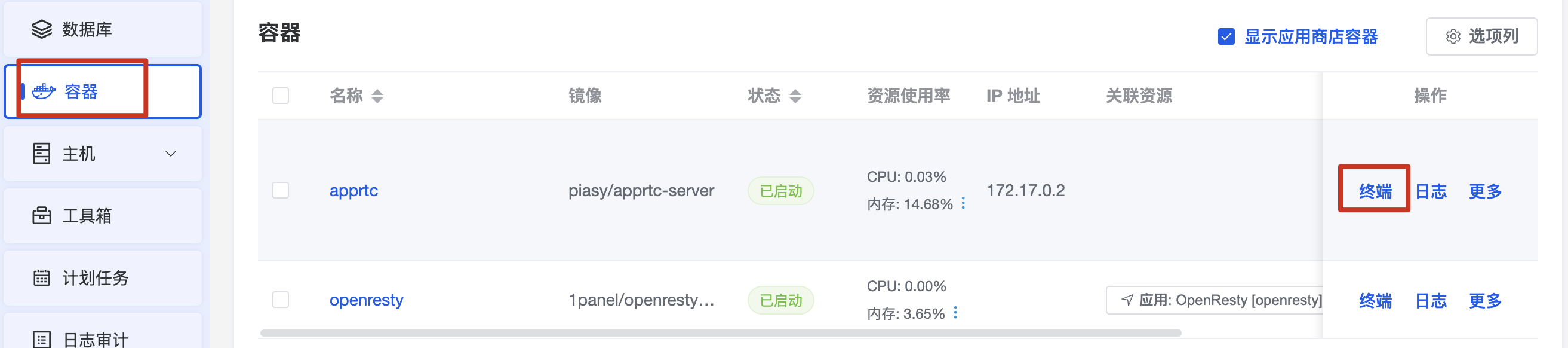 panel docker container terminal
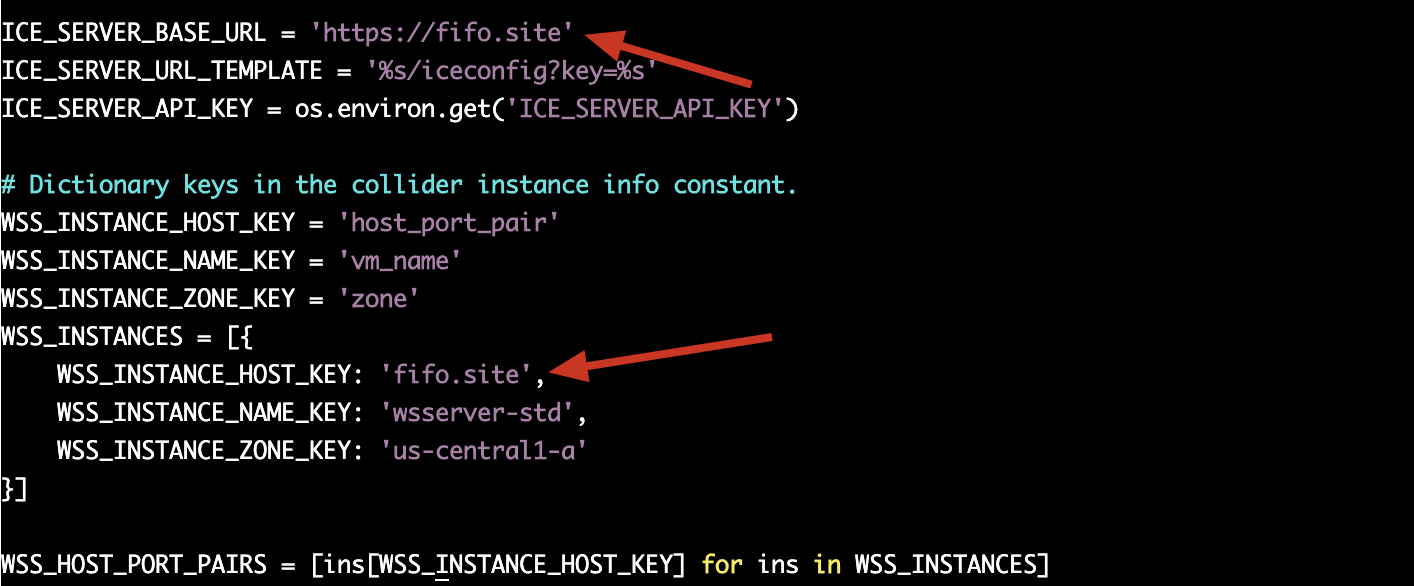
1. Edit constants.py:
vim /apprtc/out/app_engine/constants.py
Replace domains as follows:
## 修改 ice地址
ICE_SERVER_BASE_URL = 'https://rtc.fifo.site'
## 修改wss地址
WSS_INSTANCE_HOST_KEY: 'rtc.fifo.site',
2. Edit apprtc.py:
vim /apprtc/out/app_engine/apprtc.py
In the else branch of this check, change ws:// to wss:// and http:// to https.

3. Edit apprtc.debug.js:
vim /apprtc/out/app_engine/js/apprtc.debug.js
Changes:
#全局搜索pushState, 在pushState行前一行增加:
roomLink=roomLink.substring("http","https");
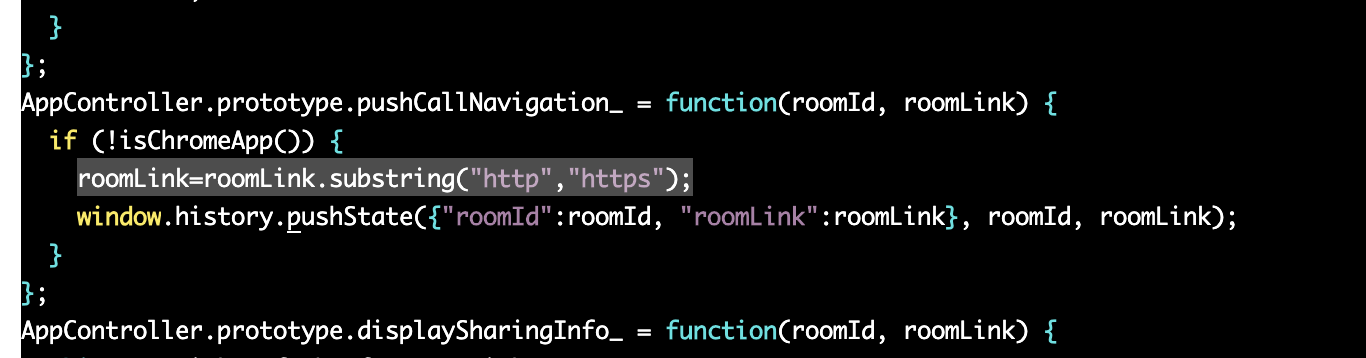 {: }edit apprtc.debug.js
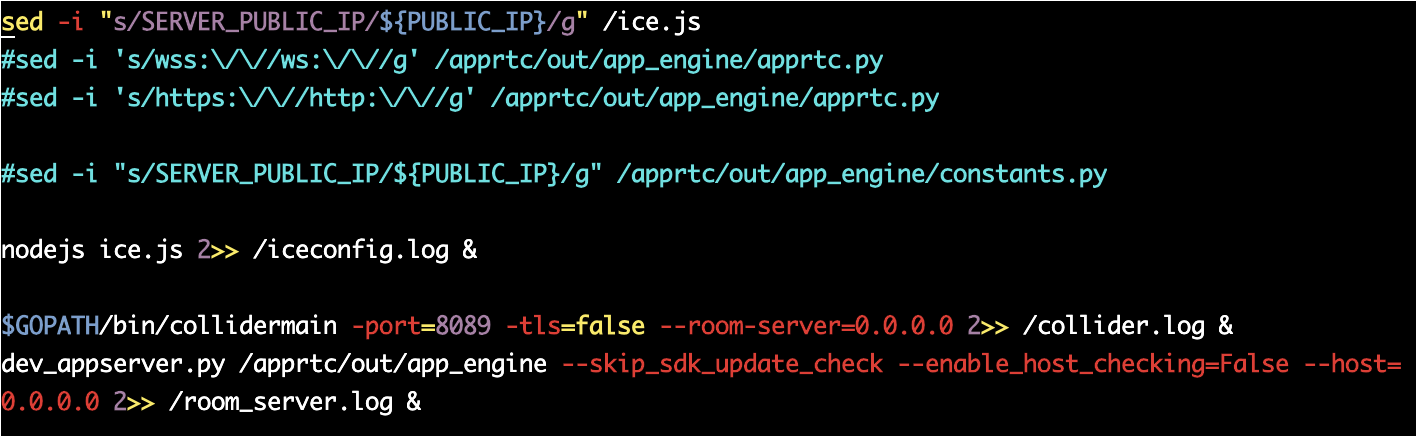
4. Edit run.sh
Comment out the three blue lines. This script runs when the container starts; commenting them out prevents restarts from reverting the changes above.
Restart the Container
Run in the terminal:
docker restart apprtc
Reverse Proxy and SSL
Browsers and iOS require SSL for public domains. Apply for a certificate in 1Panel—it is straightforward to find guides.
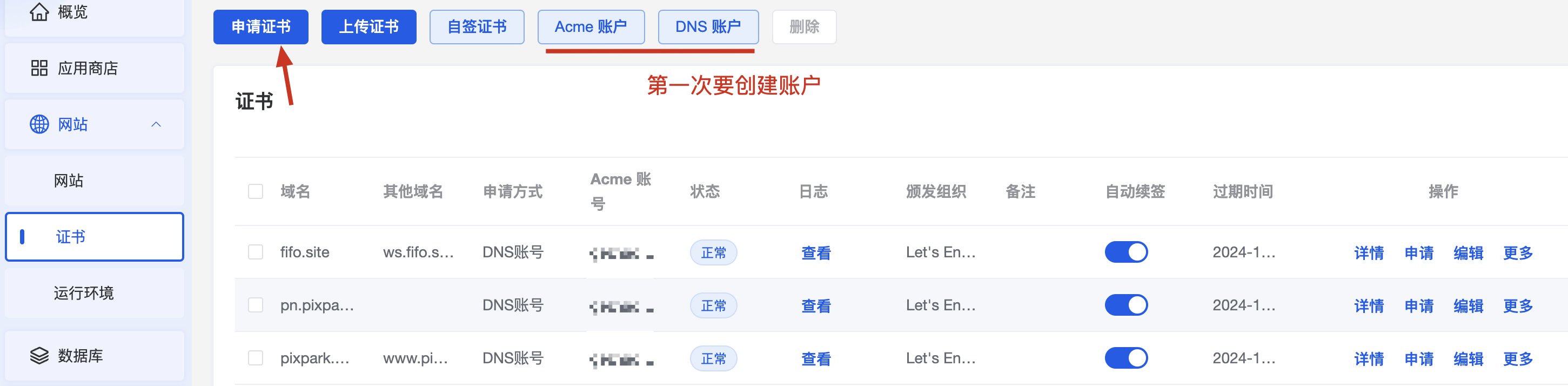 certificate request
After the certificate is issued, create a site.
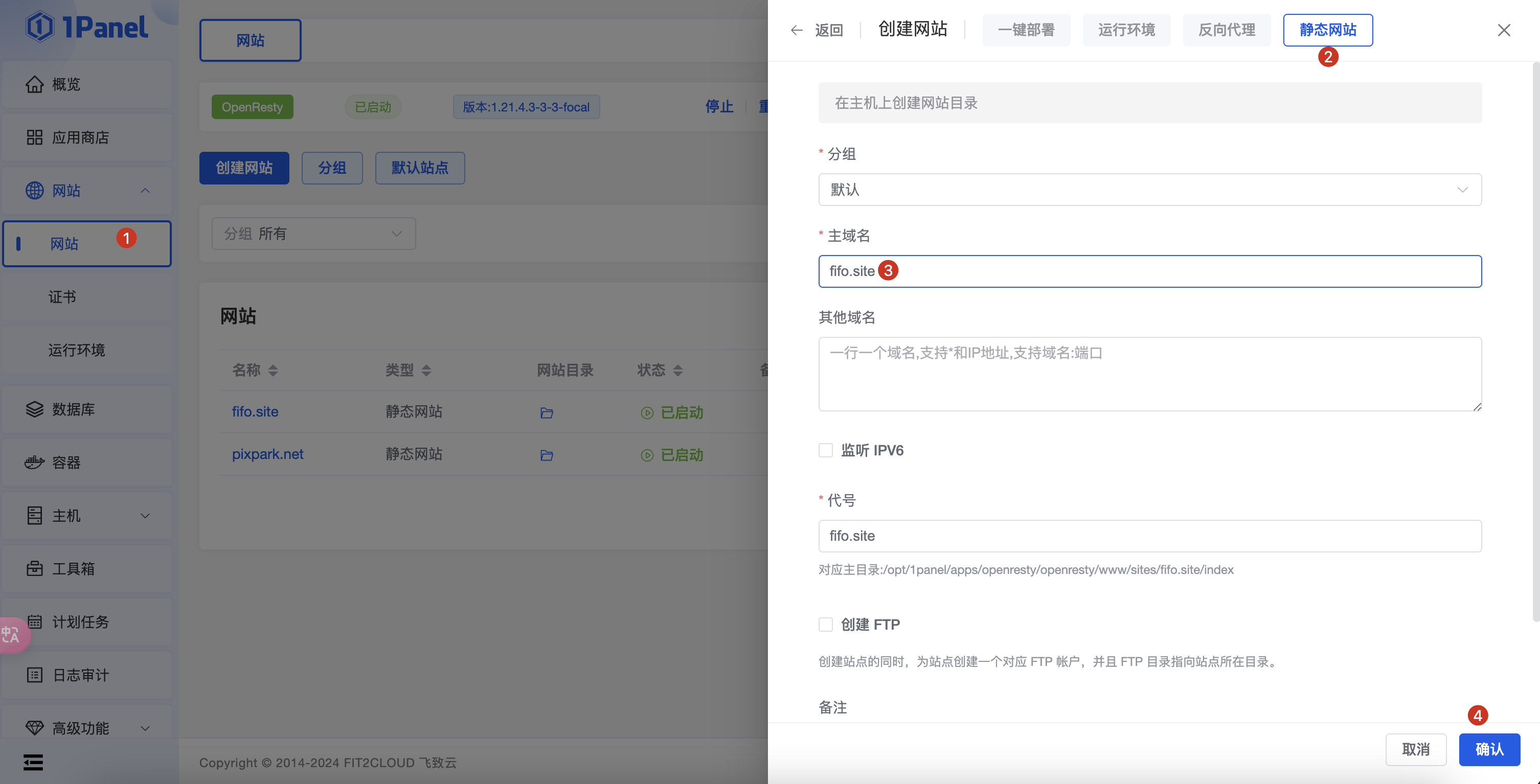 create site
Configure HTTPS for the domain:
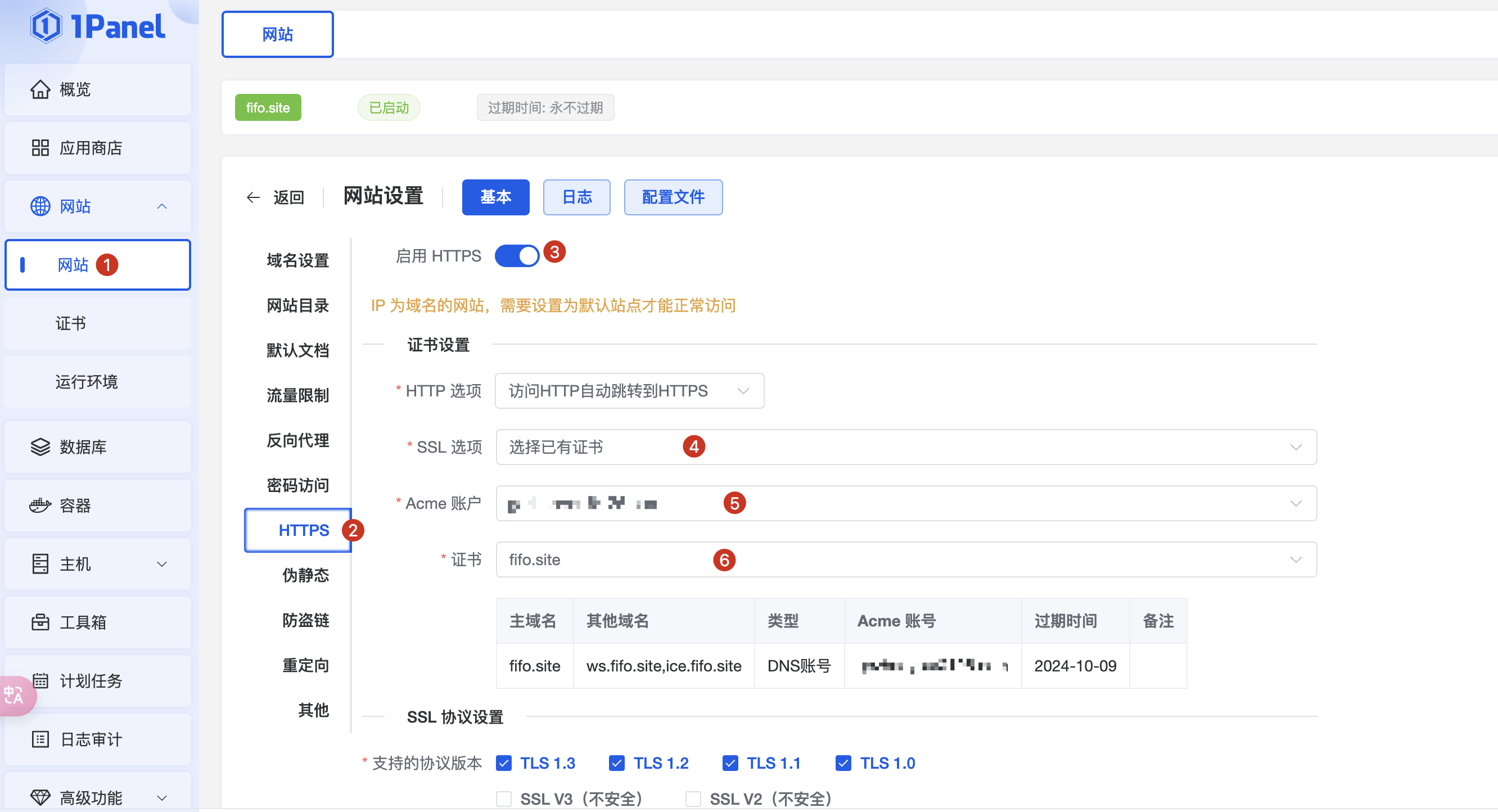 https configuration
Reverse proxy configuration:
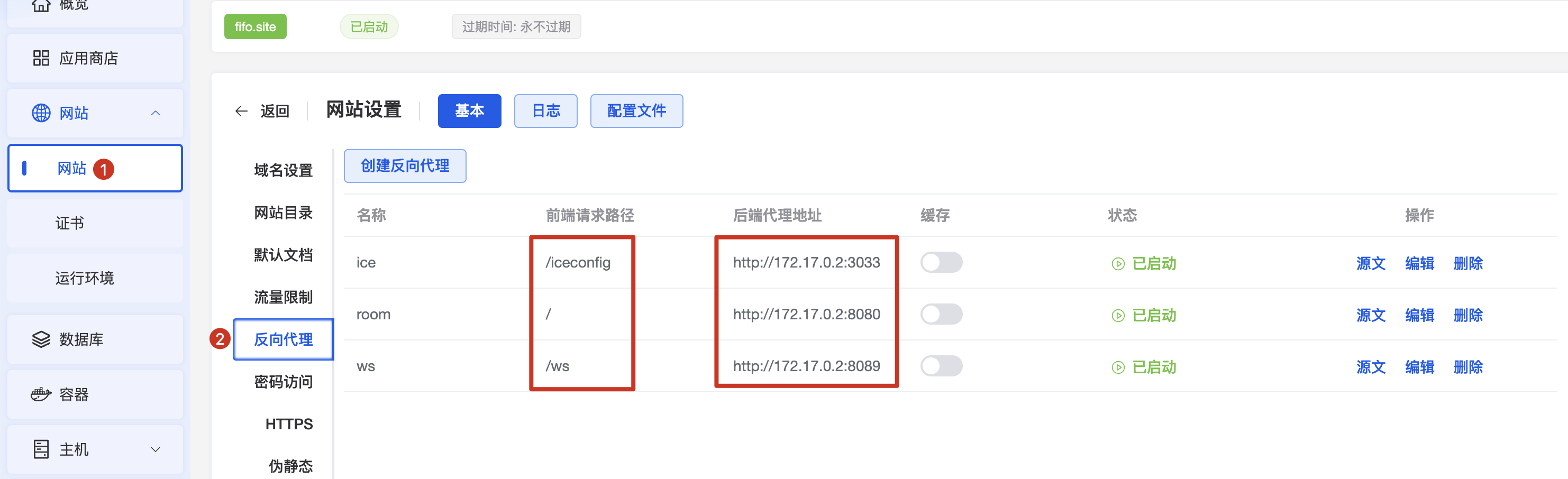 reverse proxy configuration
https://rtc.fifo.site                 => 172.17.0.2:8080
https://rtc.fifo.site/ws              => 172.17.0.2:8089
https://rtc.fifo.site/iceconfig       => 172.17.0.2:3033
Make sure frontend paths and backend proxy targets match!
Then https://rtc.fifo.site reaches the room server, proxied to http://172.17.0.2:8080 inside the container. Signaling via wss://rtc.fifo.site/ws is forwarded to port 8089. You can test WebSocket connectivity with this tool.
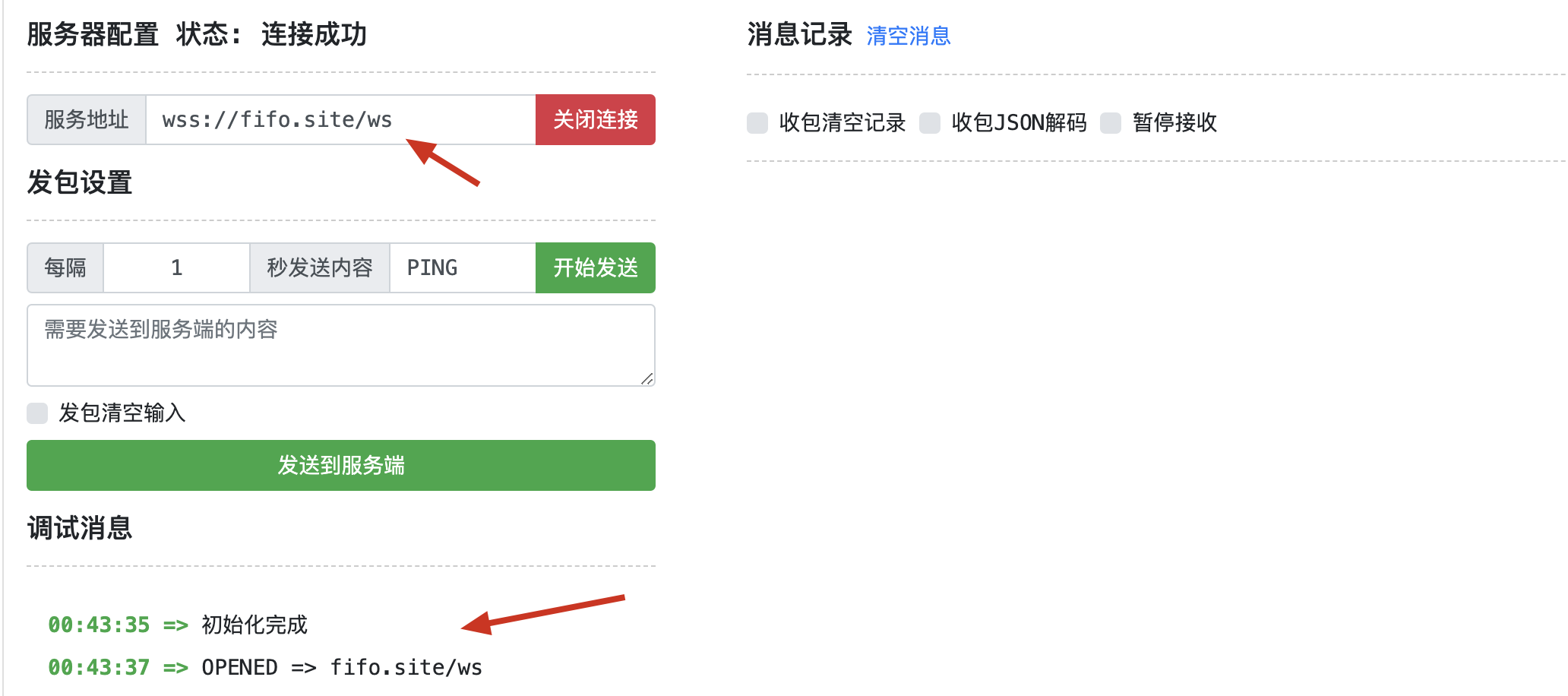 websocket connectivity test
ICE requests to https://rtc.fifo.site/iceconfig are forwarded to port 3033 in the container.
Why does this work? AppRTC already maps paths internally. External requests use HTTPS and are forwarded to non-SSL services inside—that is the reverse proxy pattern.
Routing by path also avoids cross-origin issues. Subdomains and different ports on the same domain can still be cross-origin; the proxy above avoids that. {: .prompt-tip }
At this point configuration is done. You can test in the browser.
Browser Access
Open https://rtc.fifo.site in the browser. The connection should show as secure.
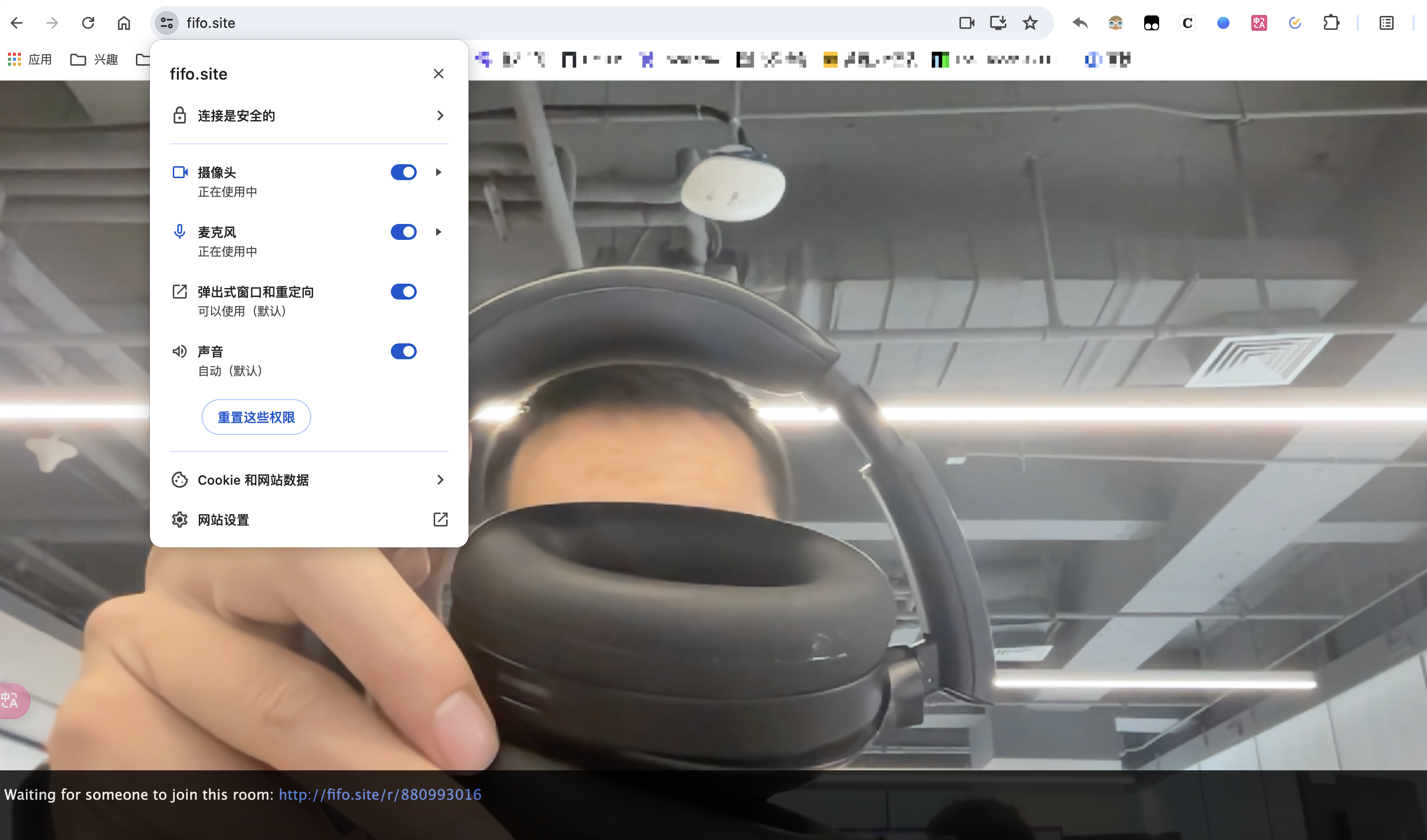 Chrome HTTPS access
Run the AppRTC Mac demo. Interop looks like this.
For some reason, the Mac app must join the room first and the browser second to see each other. Two browsers do not have this ordering issue. {: .prompt-warning }
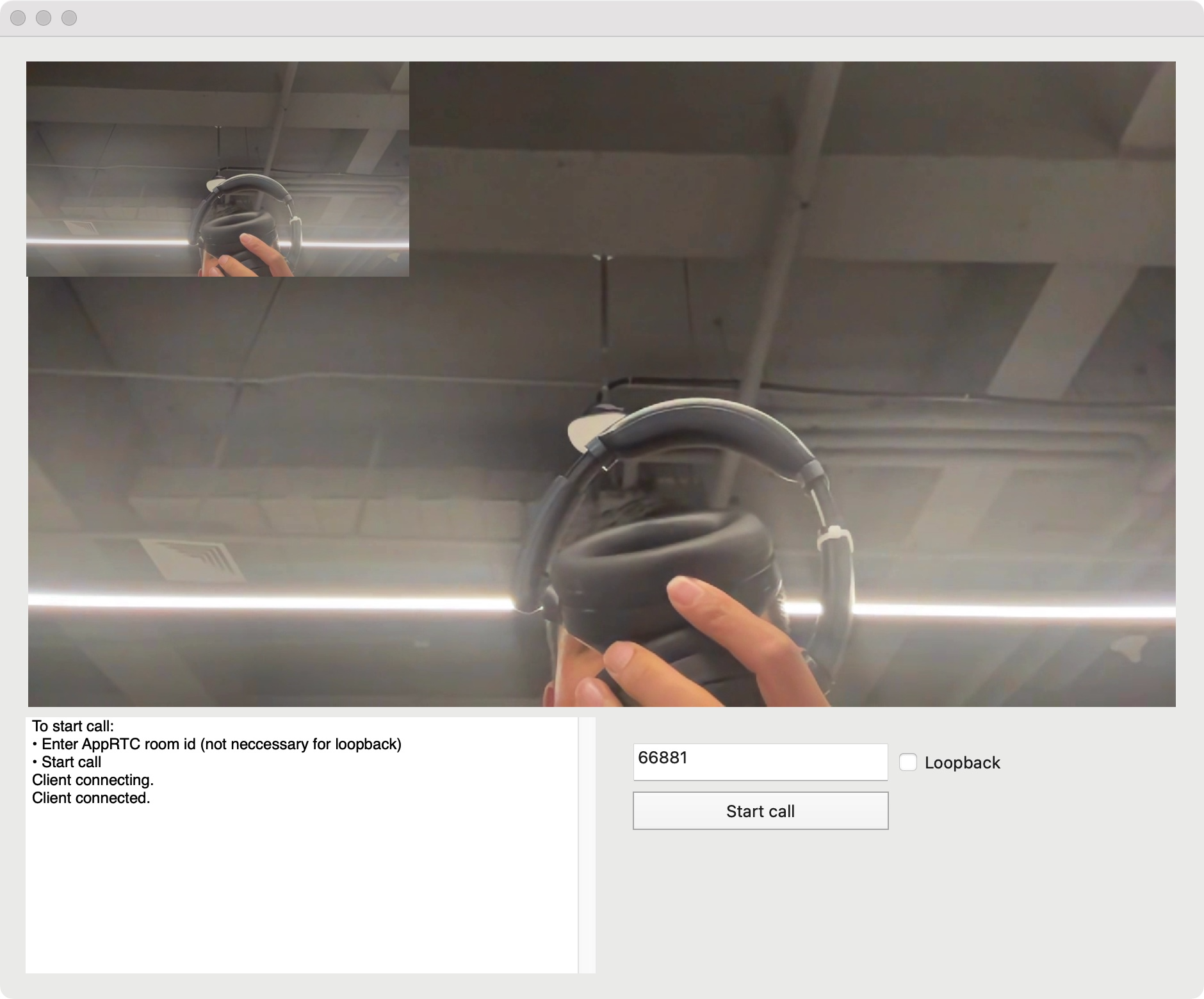 Mac AppRTC demo
Conclusion
The process is not very complex, but it took a day of trial and error: edit four files and configure reverse proxy.
I still do not fully understand reverse proxy and how it interacts with services inside Docker, but it works. Understanding it better is worthwhile for later.
Next I will test WebRTC congestion control under bandwidth limits, packet loss, and bandwidth contention and share results. Latest WebRTC is around M120+ and moves fast.